Help Desk: How do I correct the ActiveX Security Settings in Windows 11?
The cause of this failure is the strict security settings Microsoft Office that control the behavior of ActiveX controls. ActiveX controls are runtime dynamic linked programs that were supplied by Microsoft when the DVD Register Desktop was developed in the 1990s for use by MS office Application Developers. Over time ActiveX Controls fell out of favor. In 2024 Microsoft changed the default behavior of MS Office installs to disable Acvtive X controls. The DVD Register desktop application will not operate in this strict default configuration.
This issue applies to Office 365 installed after Apring 2024.
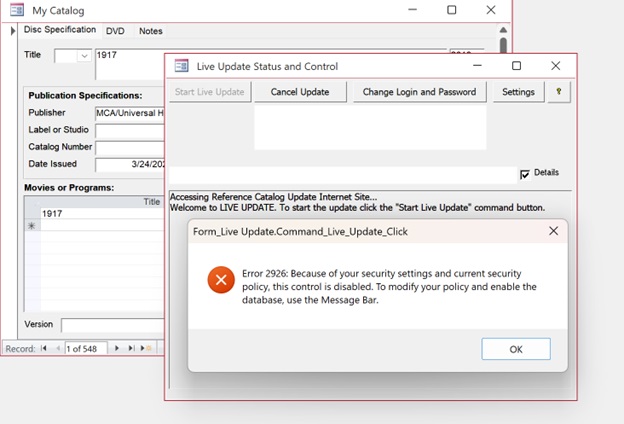
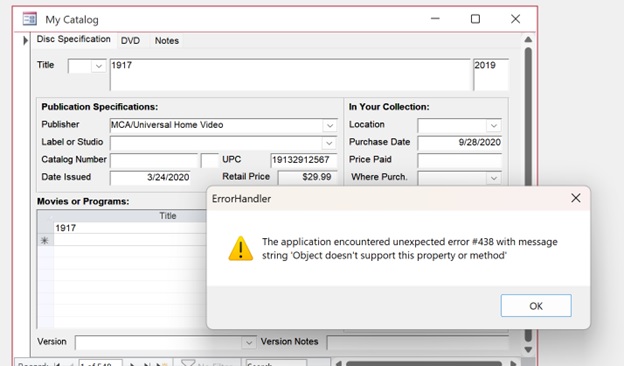
The failure can be manifest by the Error 2926: when opening the Tools>Live Update...Command. This process uses an ActiveX control to access the Internet. The failure ccan also be manifest by Error #438 when using the File:Export Backup. Command, This process uses and ActiveX control to write to the file system. There are potentially other commands that will fail. The two figures below illustrate the failures.
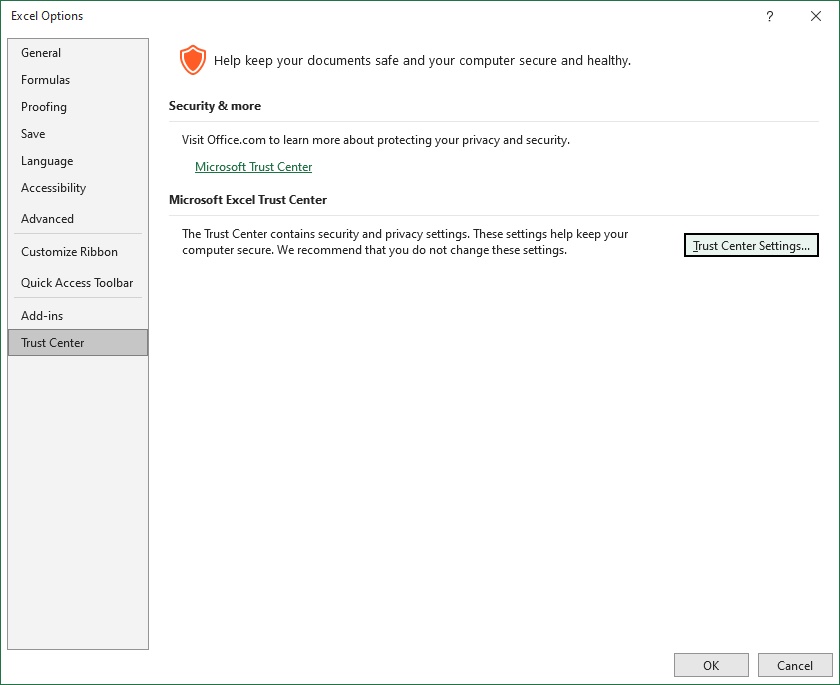
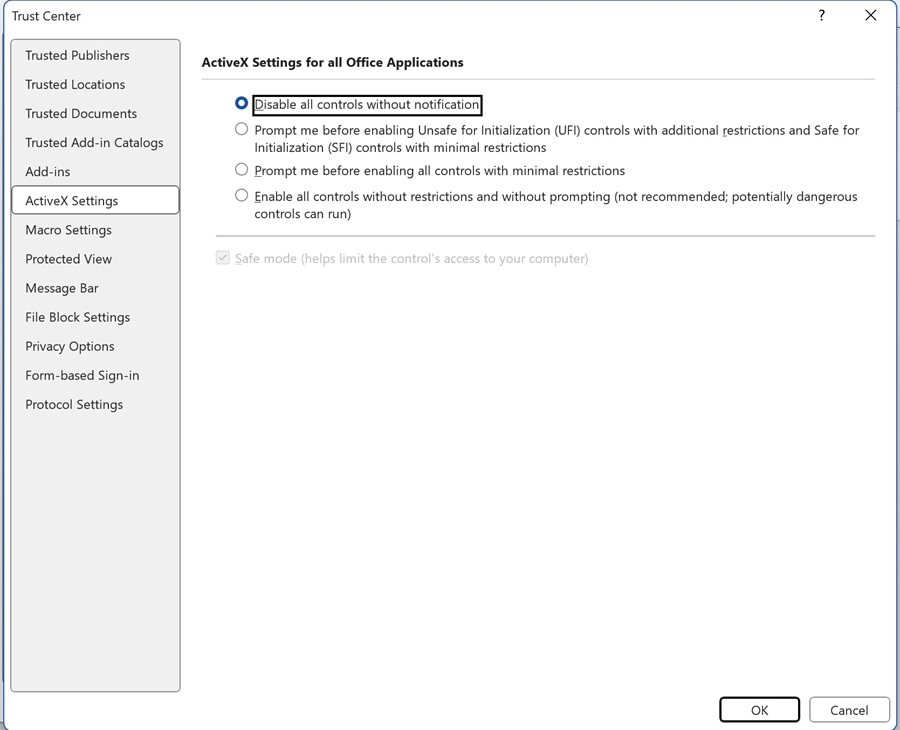
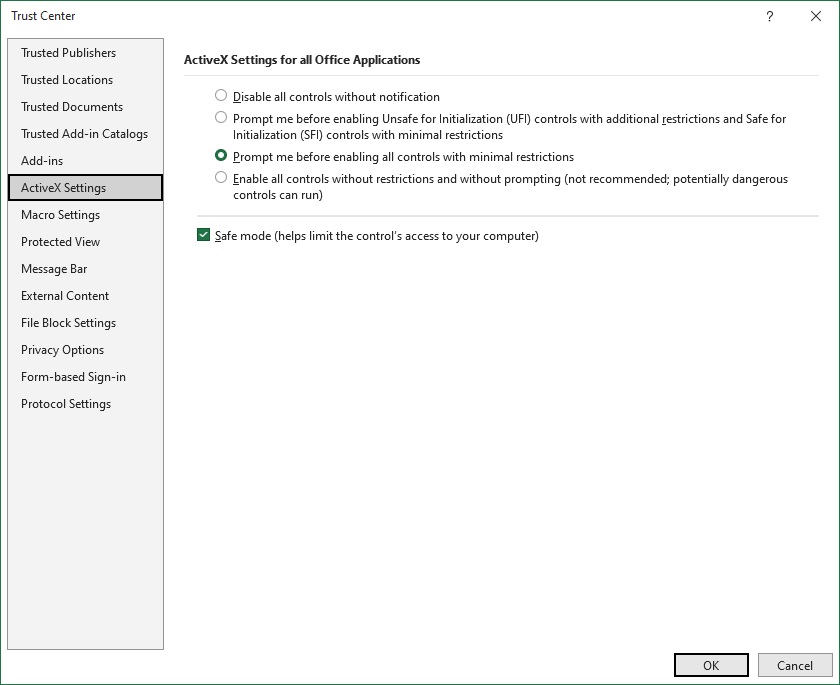
The work around for this issue is to change the default Office Settings to enable the ActiveX controls.
If the issue persists, then select the option: "Enable All Controls without restrictions....."
NOTE: This setting can be changed in a retail version of MS Access but the Trust Center cannot be opening from a run-time only version of MS Access. For now the MS Access Runtime version 2016 and 2019 do not trigger this issue.
Registry Edit Steps (Not Tested)
[HKEY_CURRENT_USER\Software\Microsoft\Office\Common\Security] "DisableAllActiveX"=dword:00000000
dword:00000000 Restores legacy default behavior enabling ActiveX Controls in Office
dword:1 This is the default setting with ActiveX Controls disabled in Office. This is the behavior if the registry entry is missing.
Copyright © DVD Register. All rights reserved.